

Step 1.
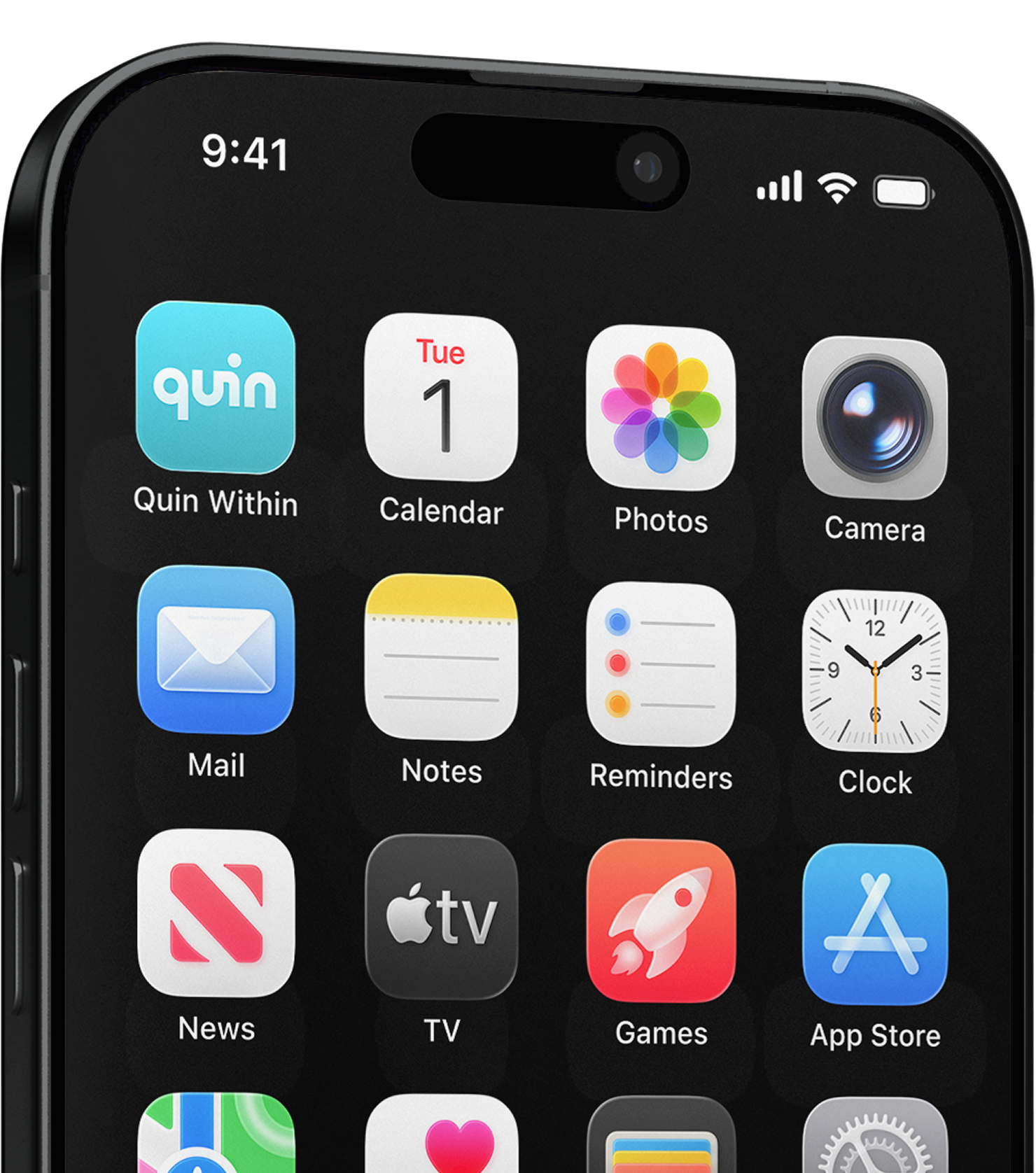
Download the
Quin Within App
Step 2.
Create your
Digital Medical ID
When creating your account using the
Quin Within App, simply add your
emergency contacts & medical
information as prompted on screen:
Emergency
Contacts
TH
Tana Hoffman
+1 415 234 5678
tana@email.com
Add a Contact
Add emergency contacts and enable safety alerts for quick assistance in critical situations.
Emergency
Information
Blood Group
Primary Language
Country
Gender
Medical
Information
Allergy Information
Medical Conditions
Identification Markers
Medications
Step 3.
Tag the QuinTAG to
upload your MedID &
Contacts to your Helmet
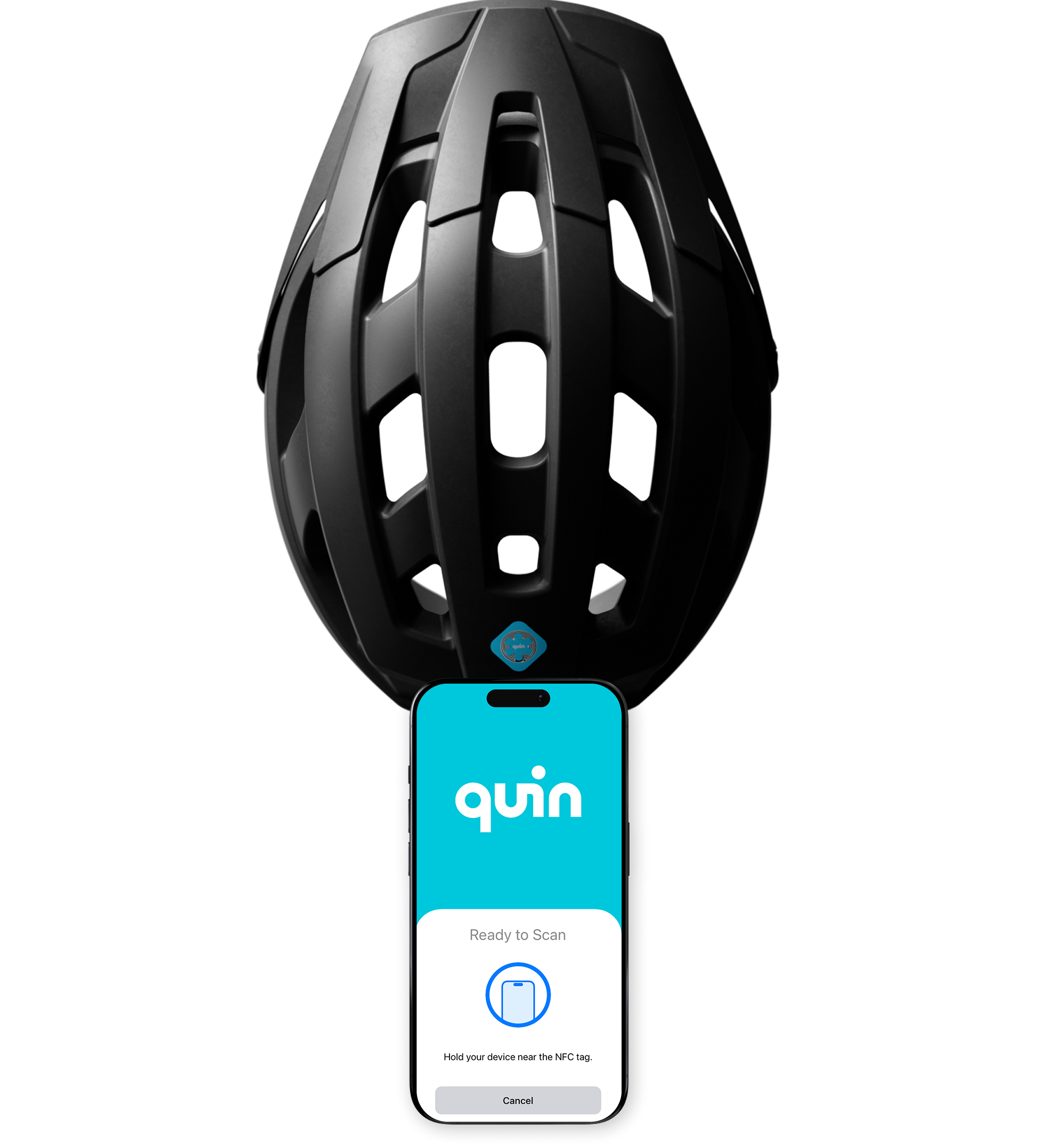
Simply select “Upload Medical ID” in the
app, follow the prompts, and hold your
phone against the Quin Tag when
prompted to verify and securely upload
your information.
iPhone
Hold the top of
your phone near
the QuinTAG
Andriod
Hold the centre
of your phone near
the QuinTAG
Your Digital Med ID,
is now instantly accessible
in emergencies
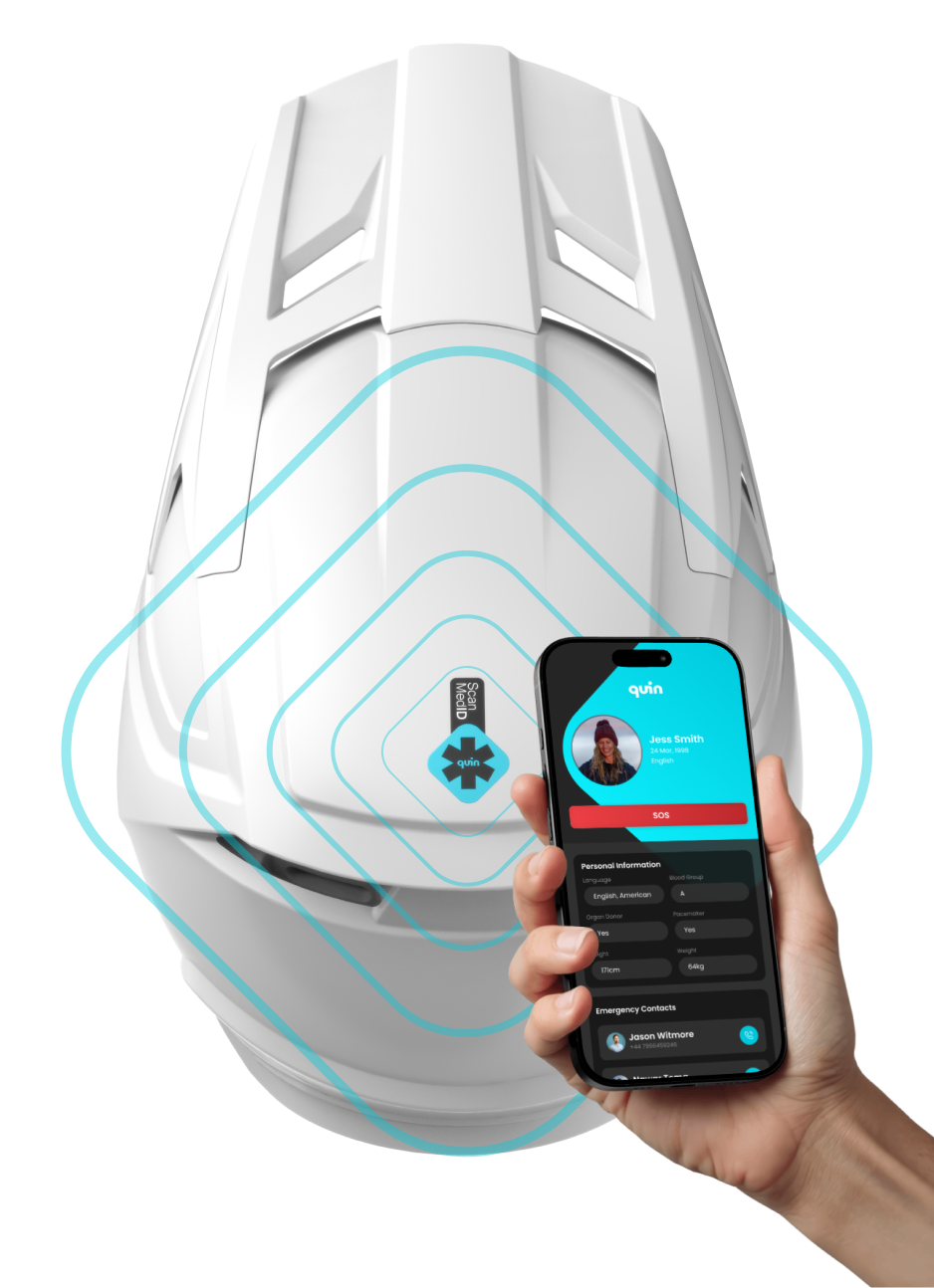
Once your Medical ID has been
uploaded, in the case of an emergency a
passer-by or responder can simply tap
the Quin Tag with their smartphone to
instantly view your critical medical
information - no app required. At this
moment a help request can be triggered
to send emergency alerts to your
emergency contacts & professional
emergency services if you have a Quin
Plus subscription.
This page is not acessible on a desktop device.